← Tasks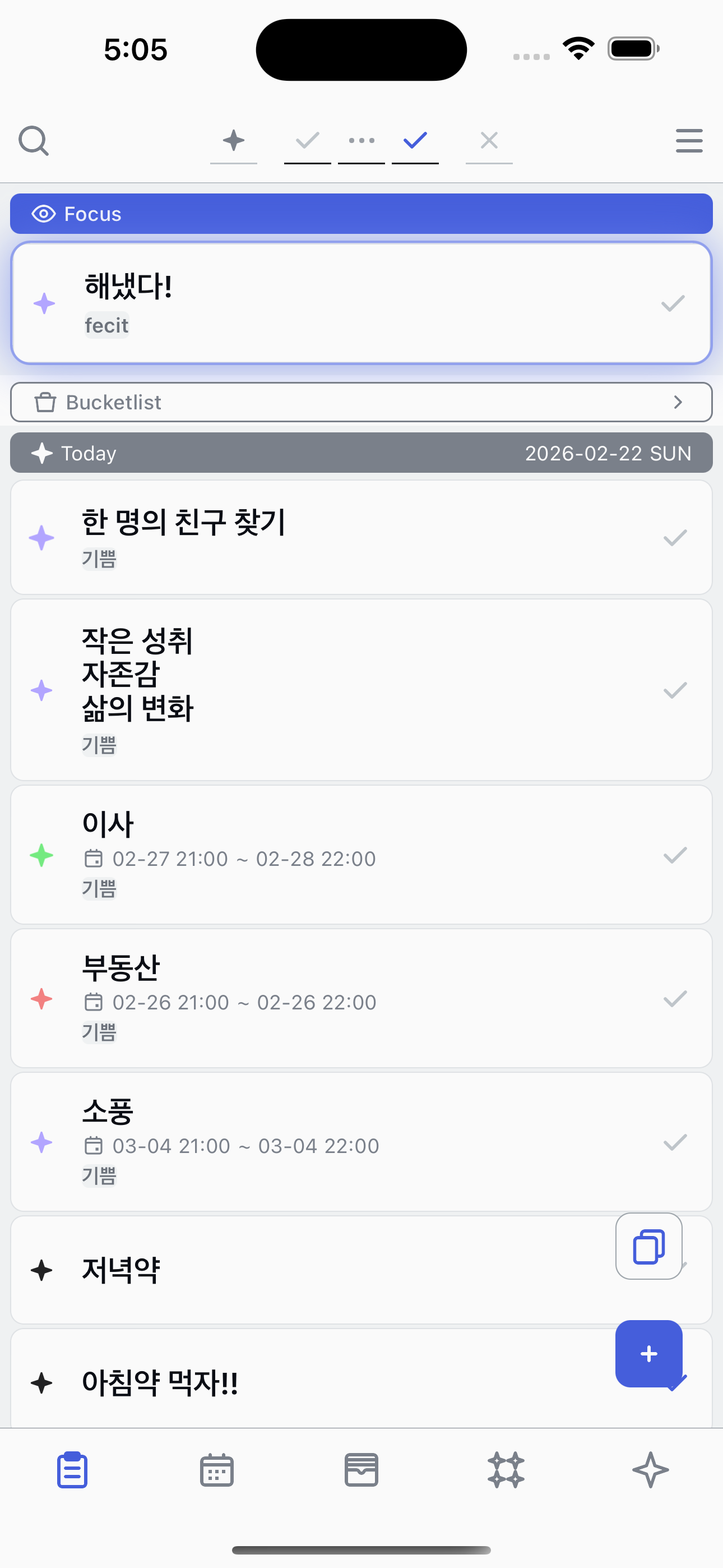
Adding a task
Register a new task in just a few seconds.
1
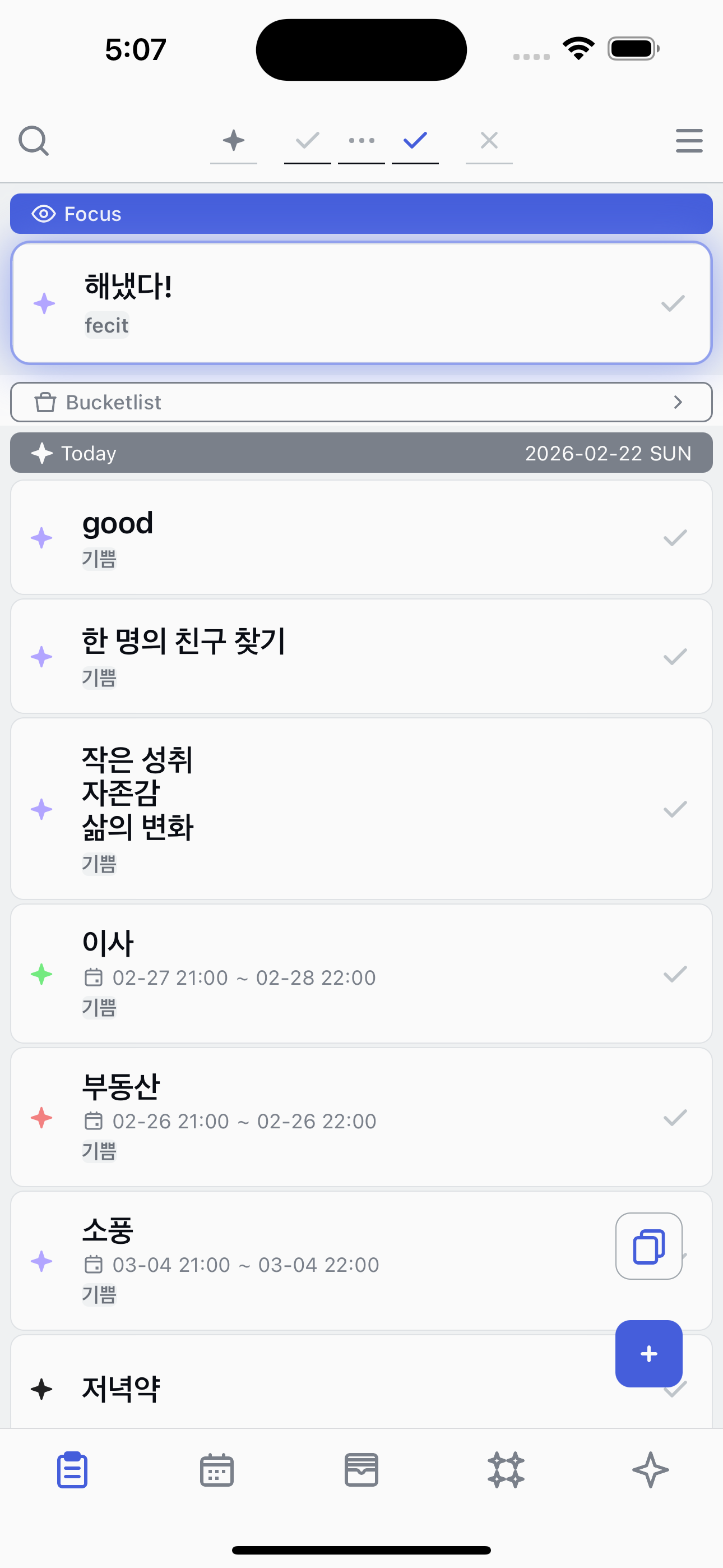
Open the add screen
Tap the + button at the bottom of the task list to open the new task screen.
2
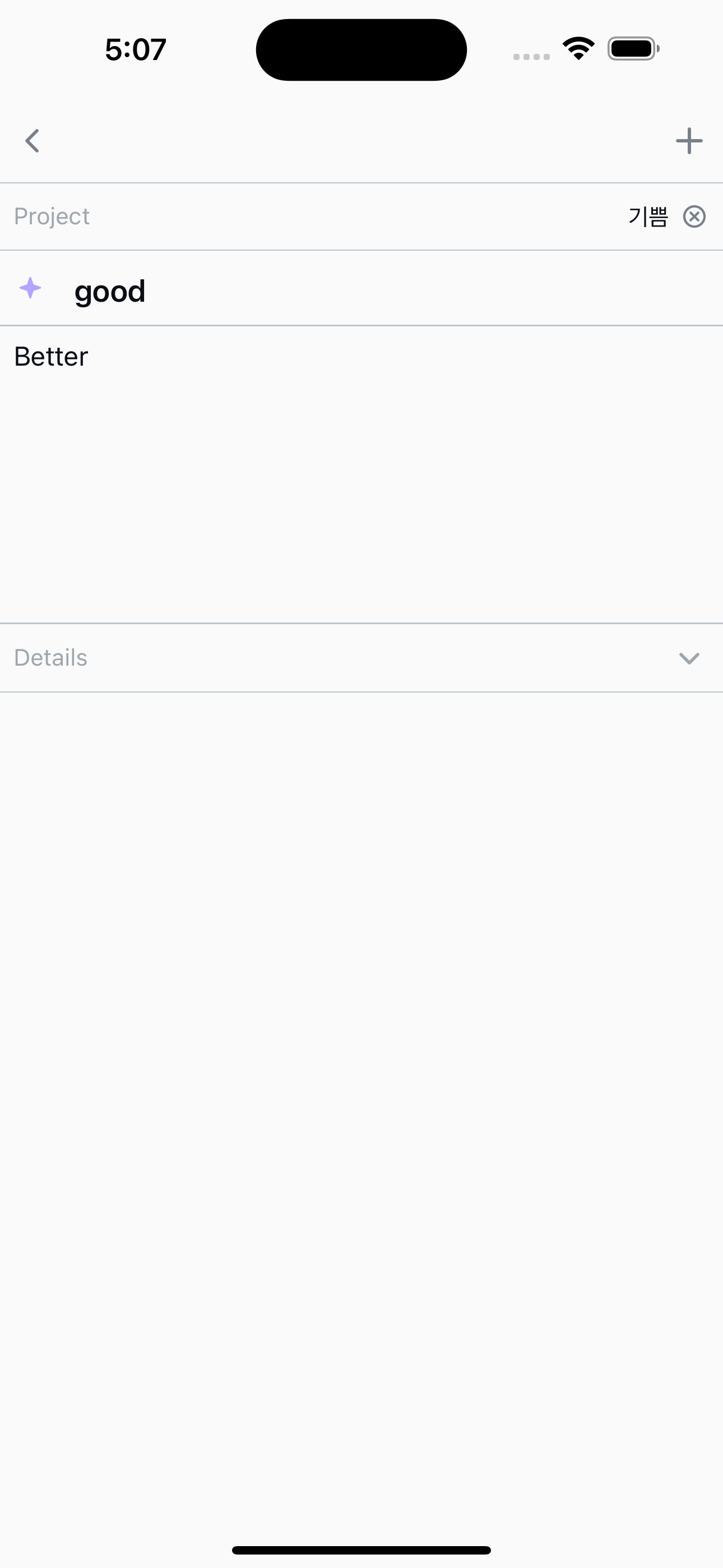
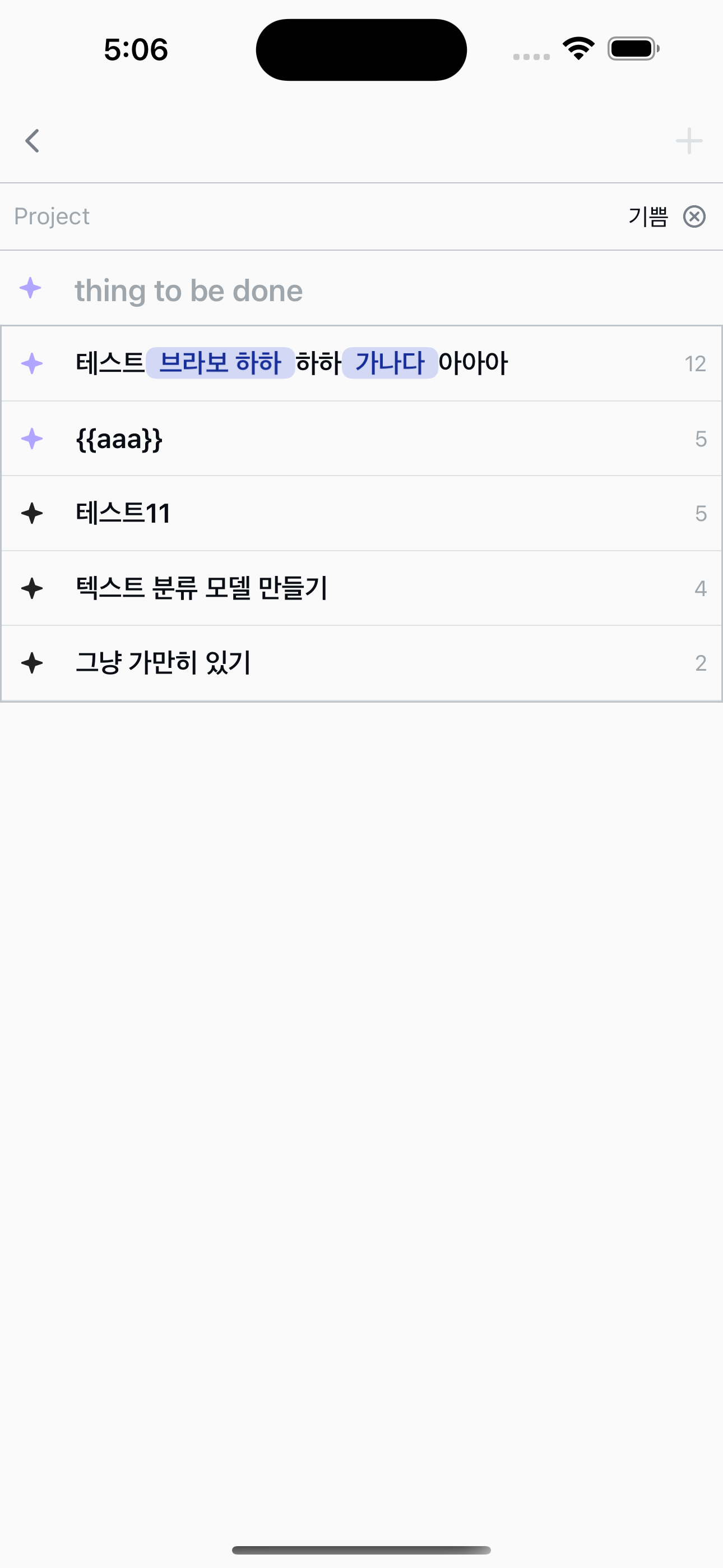
Enter a title
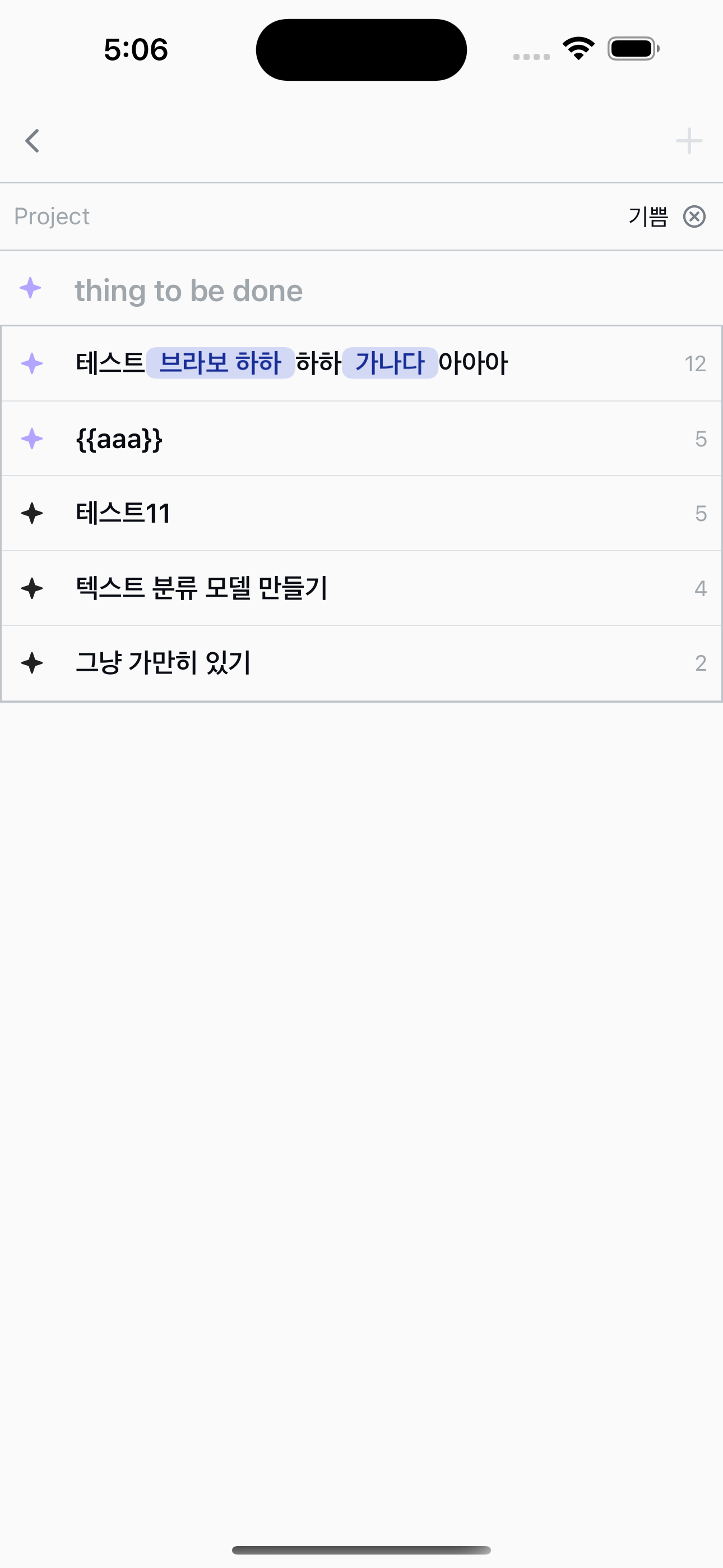
The title is the only required field. As you type, Fecit suggests matching templates from your history to help you start quickly.
3
Add a description (optional)
Add notes or details about the task. This is completely optional.
4
Configure details (optional)
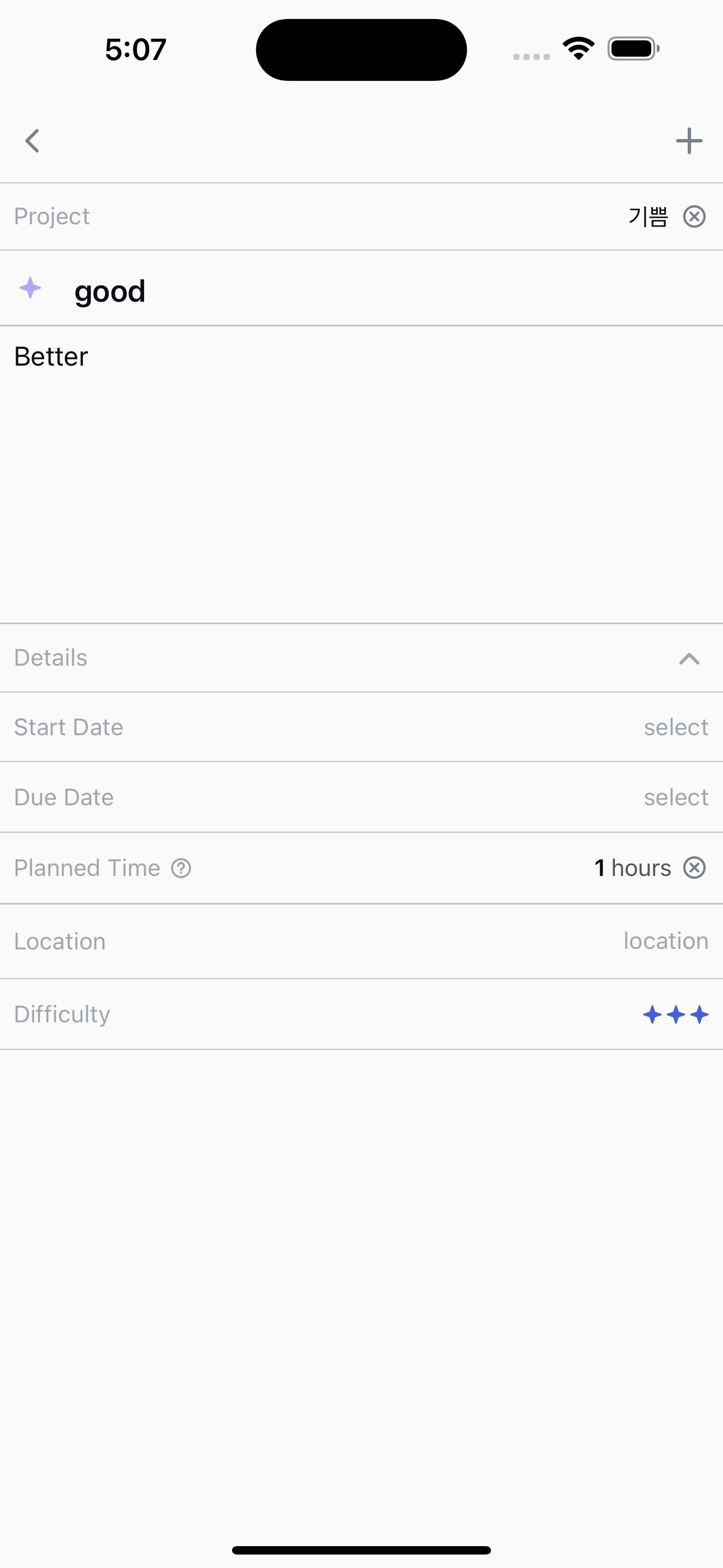
Fine-tune your task with optional settings:
●
Start / due date
Schedule when to begin and finish.
●
Estimated time
How long you expect it to take.
●
Difficulty
Rate the effort level.
●
Color
Visually categorize your task.
●
Location
Attach an address.
●
Project
Group related tasks together.
5
Use template suggestions
While typing, Fecit automatically suggests matching templates. Tap a suggestion to fill in the task details instantly.
6
Save
Tap the back button to save. The task appears at the top of your list with a Registered status.
Task states
Every task goes through a simple lifecycle:
Registered→Started→Completed
You can also cancel a task at any point.