Registering from calendar
Create tasks with dates directly from the calendar view.
Method A — Using the date button
Set the date first, then create your task.
Open the calendar tab
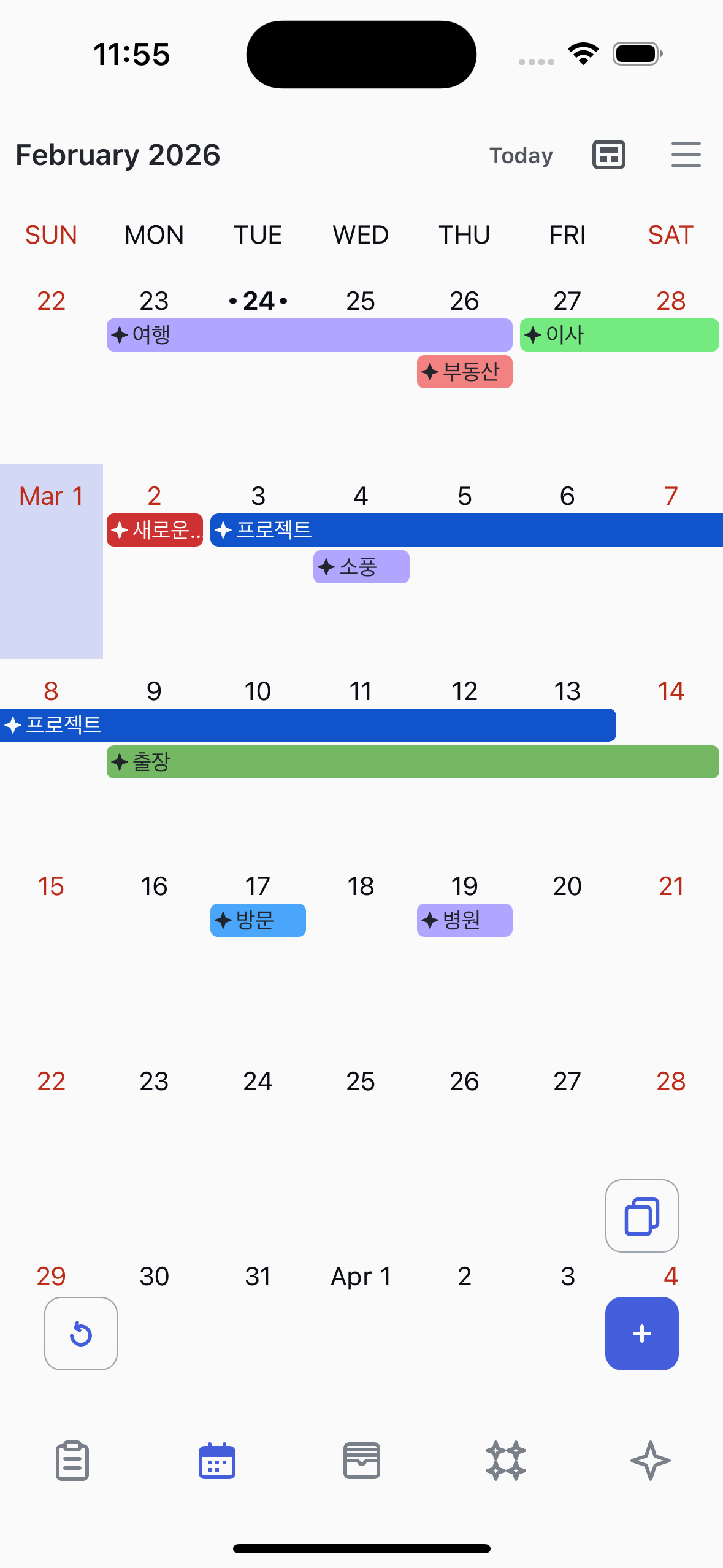
Tap the Calendar tab at the bottom to open the weekly calendar view.
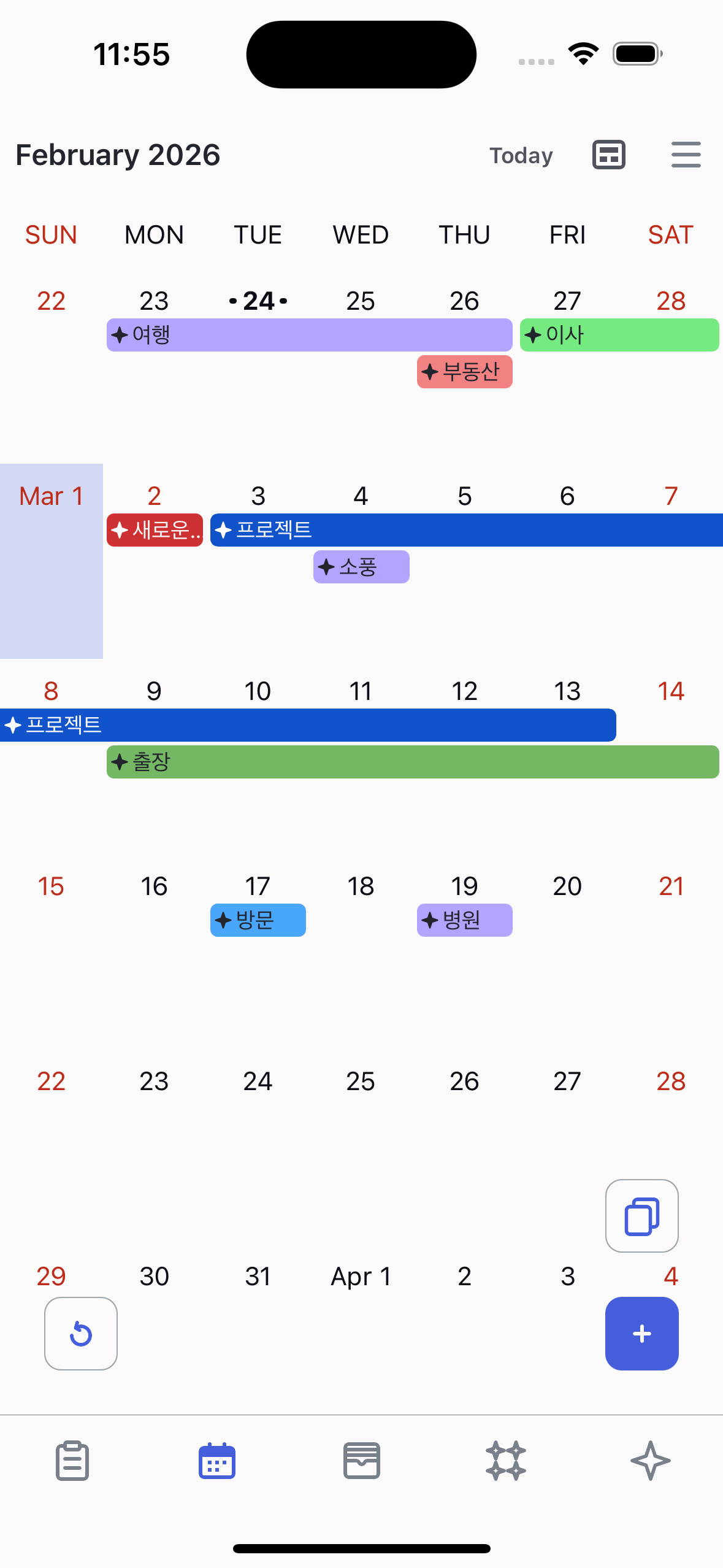
Tap a date
Tap on any date in the calendar. This opens the date detail view showing all tasks for that day.
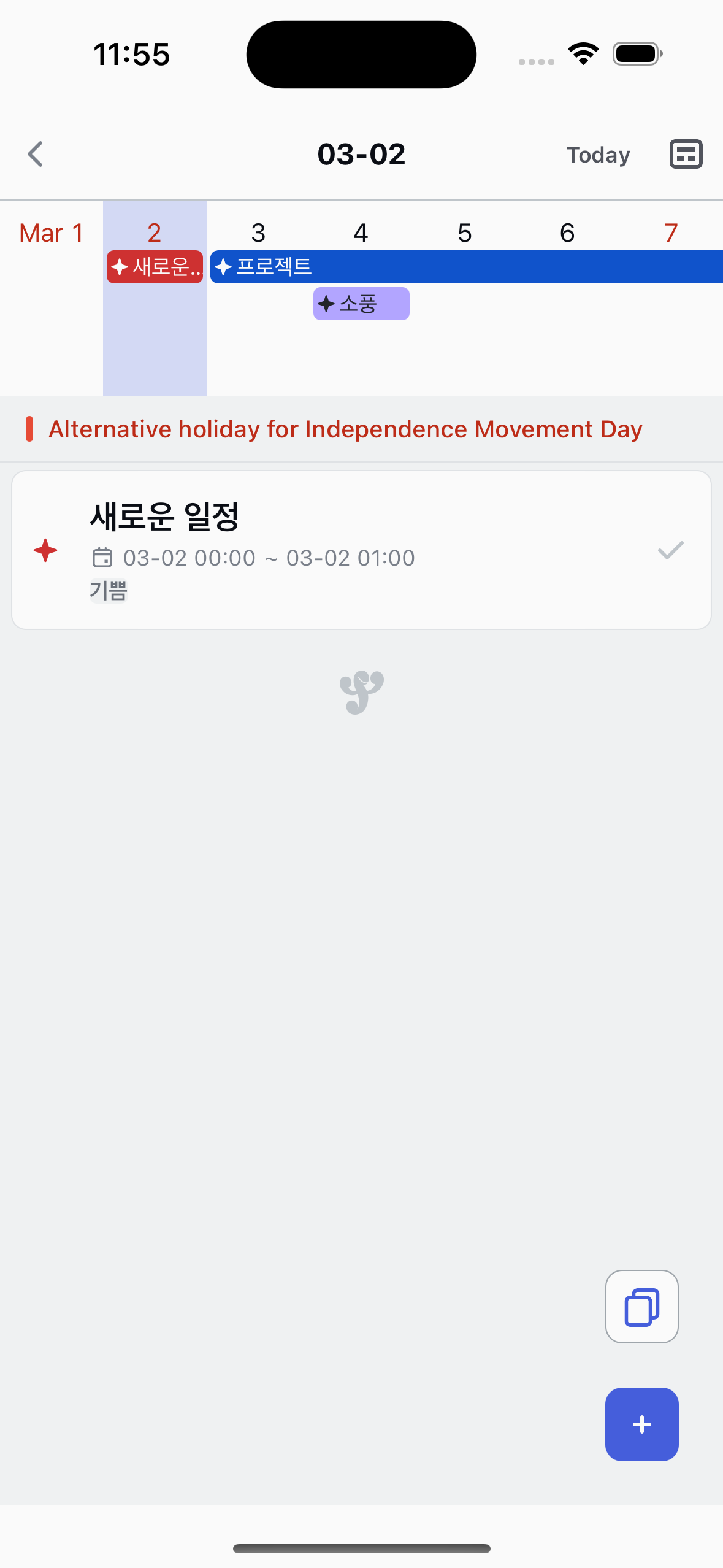
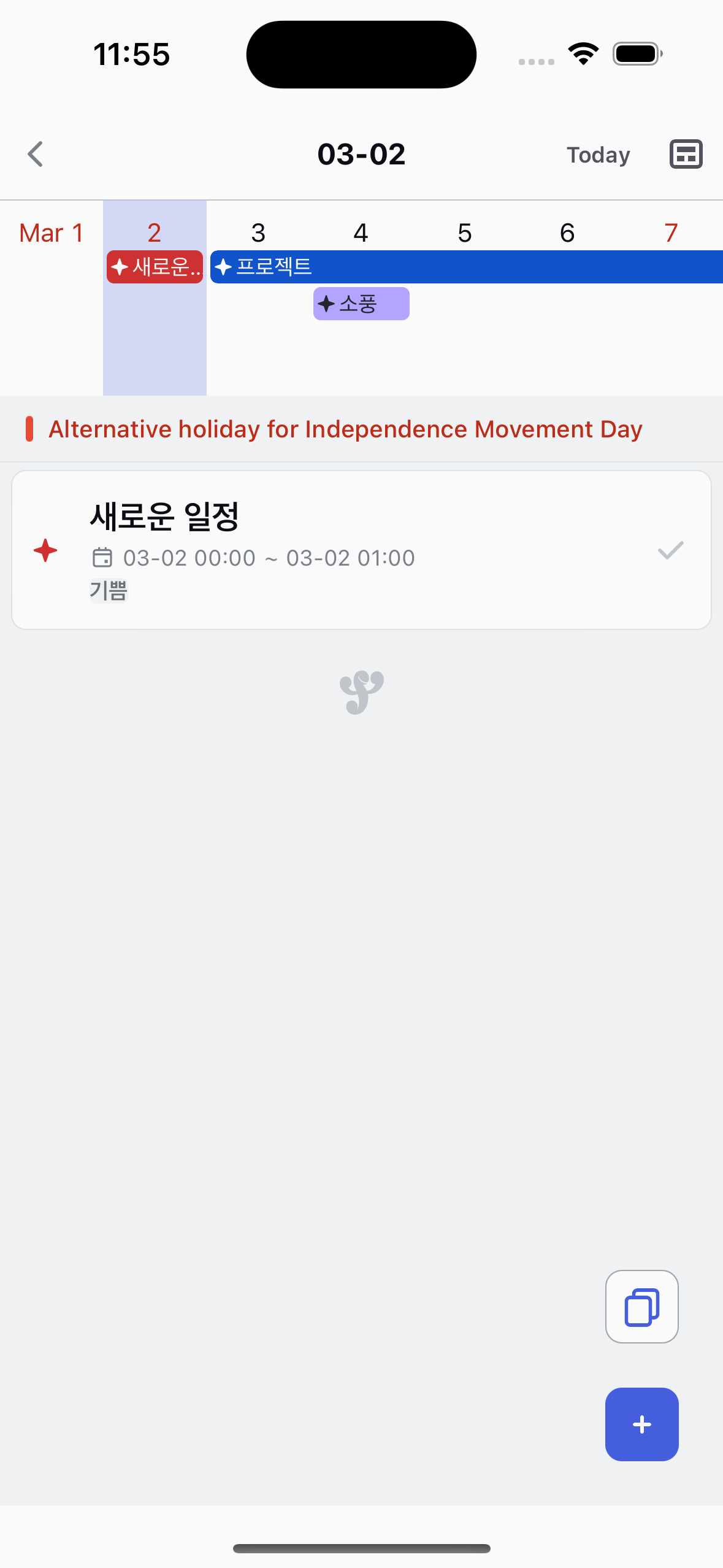
Tap the + button
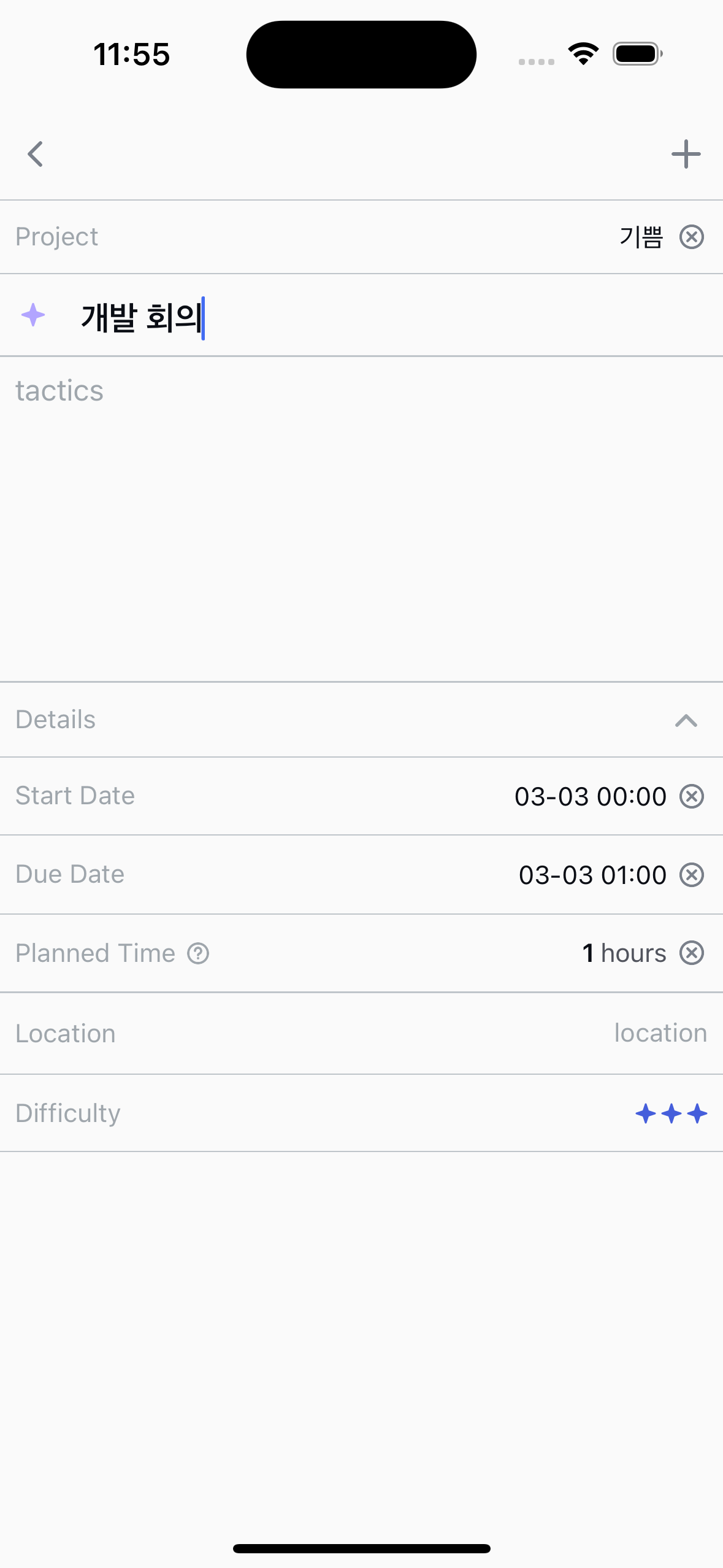
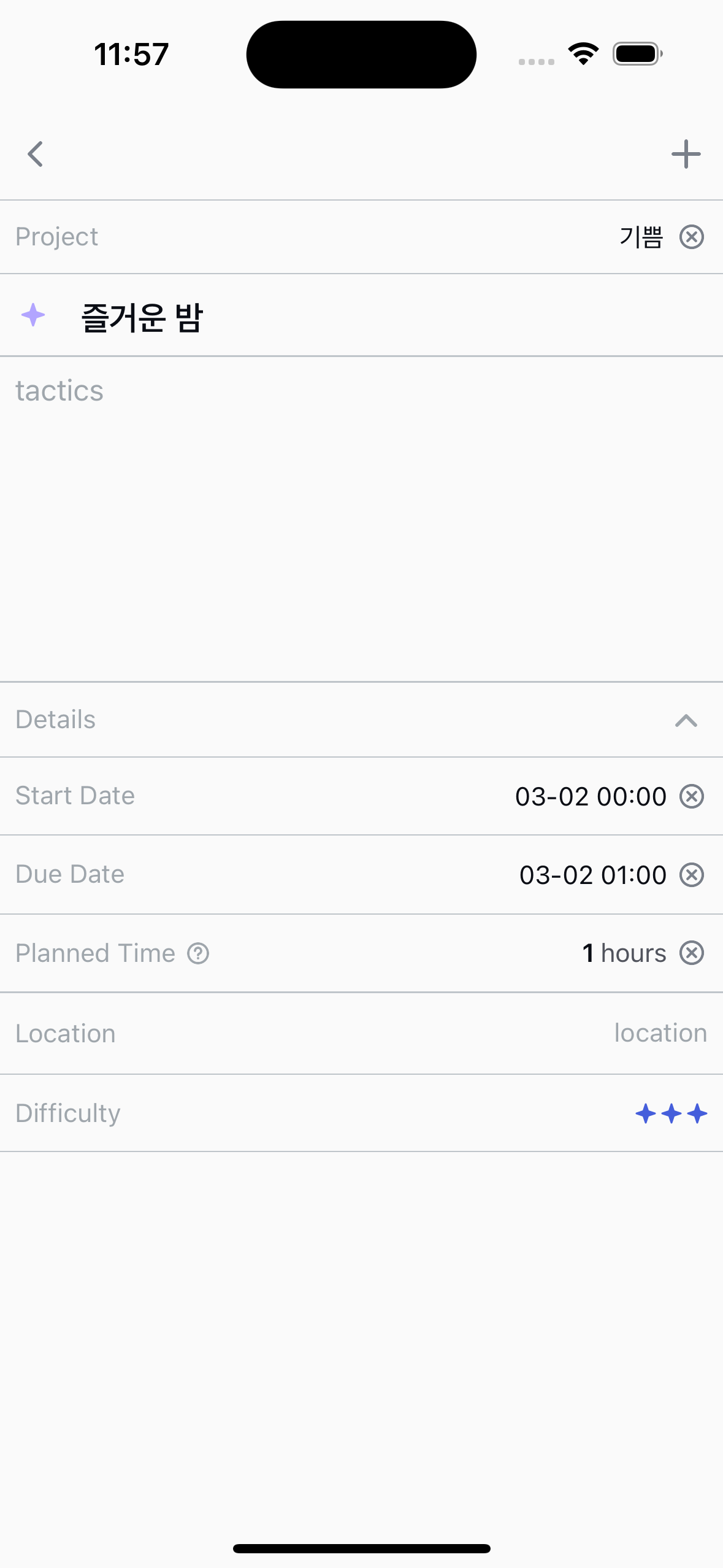
Tap the + button in the date detail view. The new task screen opens with the start date already set to the date you selected.
Fill in and save
Enter a title and any other details, then tap the back button to save. The task appears on the calendar at the selected date.
Method B — Long press
Press and hold a date to jump straight to task creation.
Long press a date
On the calendar view, press and hold any date cell. After a brief haptic feedback, the new task screen opens directly.
Fill in and save
The start date is pre-filled with the long-pressed date. Enter a title and save. Done!
Tip
Both methods pre-fill the start date for you. Long press is faster when you already know what you want to add — tap the date button when you want to review existing tasks first.