← Tasks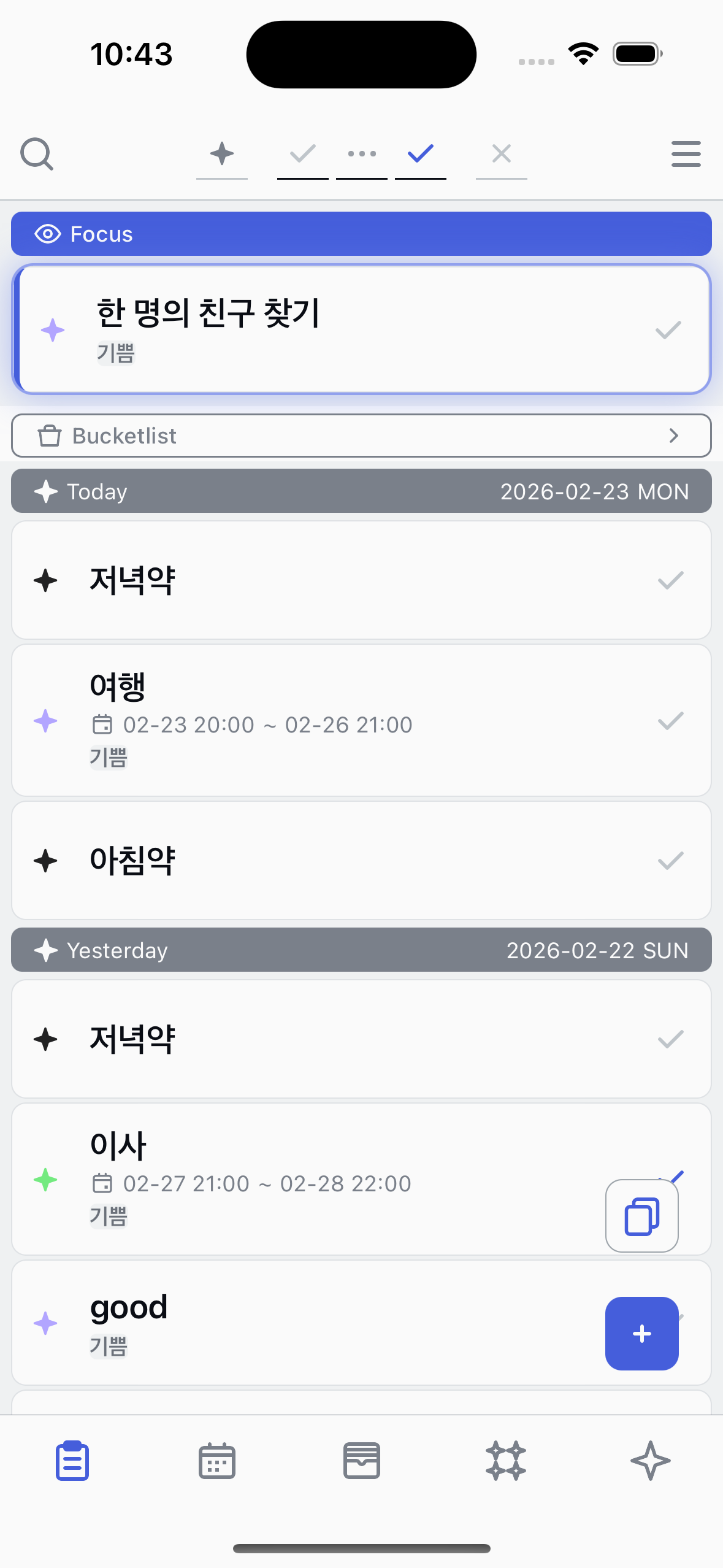
Filtering the list
Use the top bar filters to show only the tasks you need.
1
Find the filter buttons
At the top of your task list, you'll see filter buttons in the center of the top bar. Each icon represents a task state:Registered ,Started ,Completed , andCancelled . There's also a star button to filter by point color.
2
Toggle a state filter
Tap any state button to show or hide tasks in that state. Active filters have a highlighted underline. By default,Registered ,Started , andCompleted are turned on, whileCancelled is off.
3
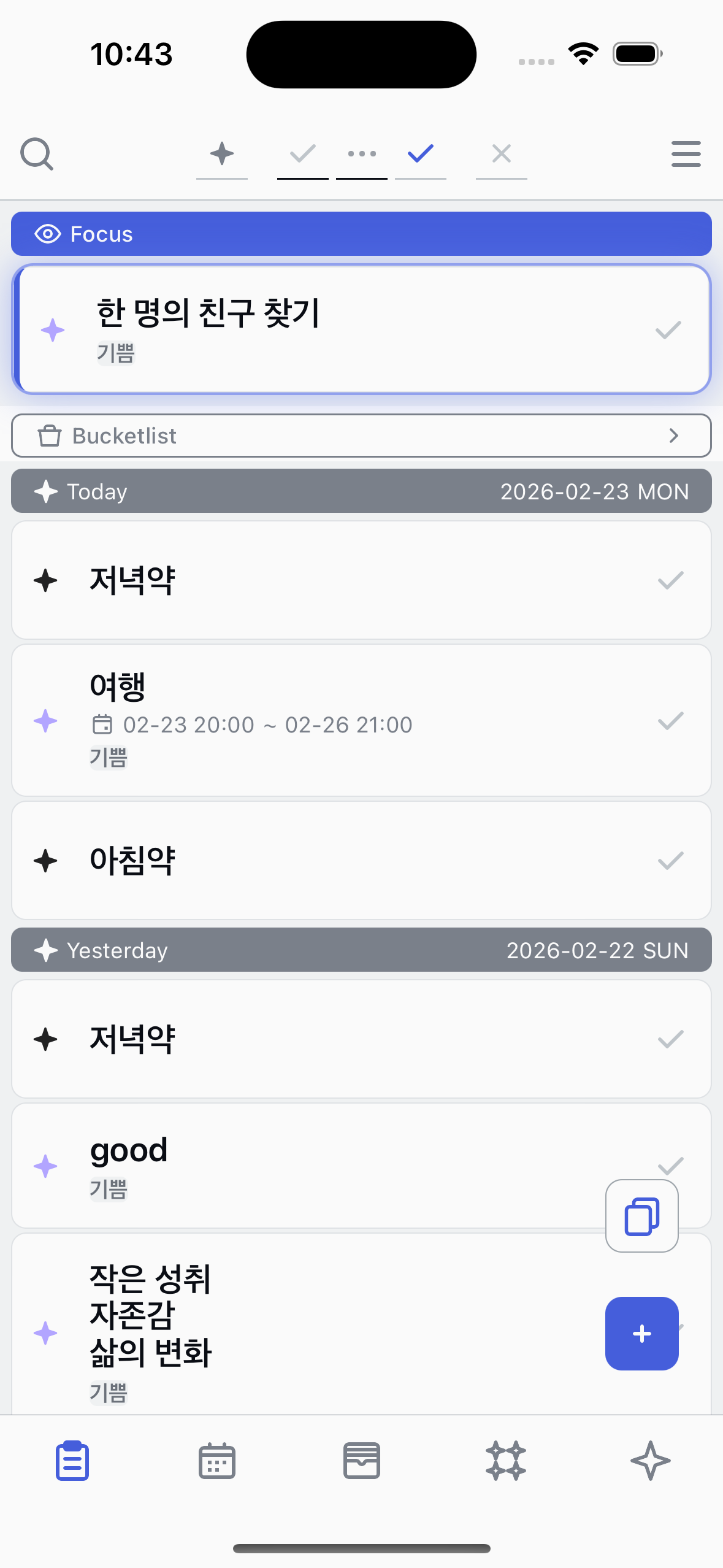
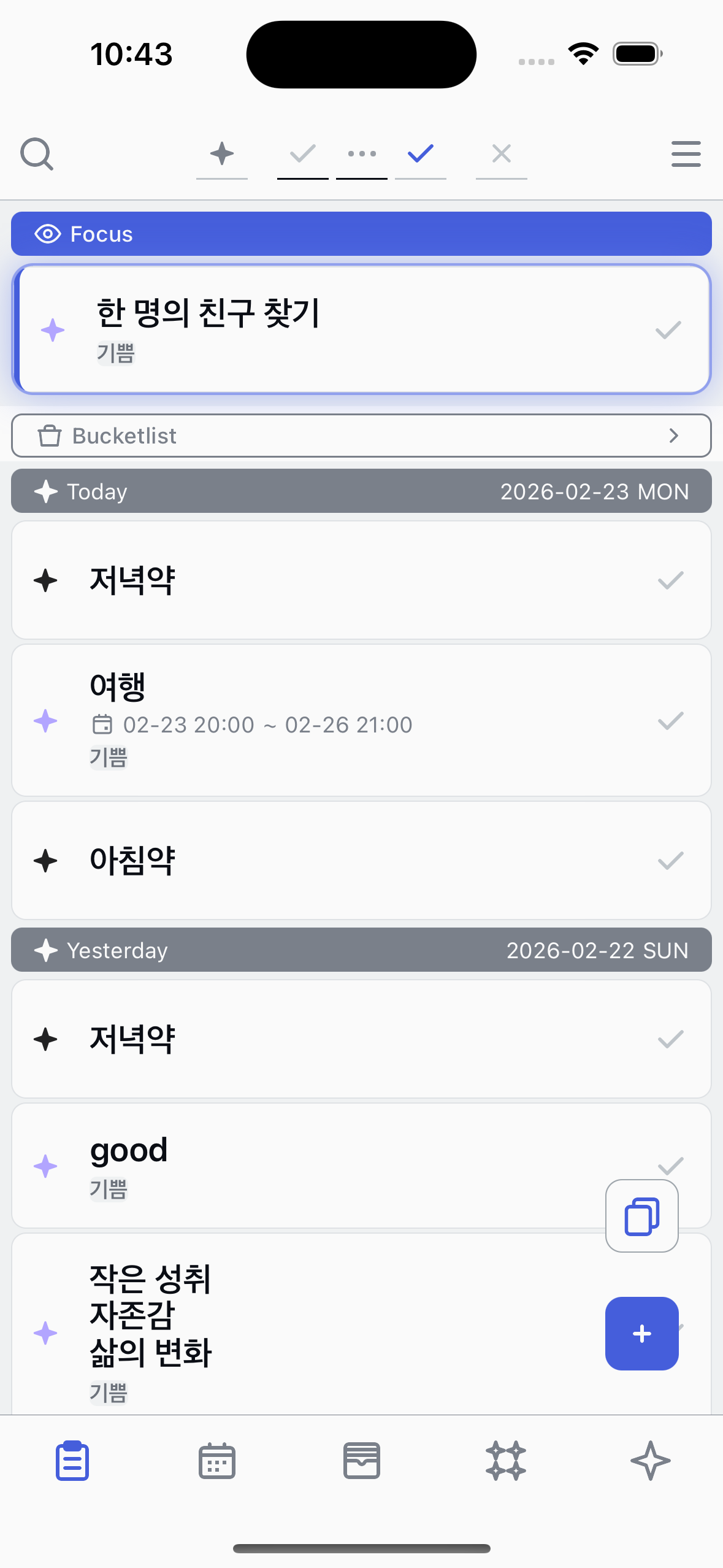
Hide completed tasks
Tap the Completed button to turn it off. All completed tasks will disappear from your list, letting you focus on what still needs to be done.
4
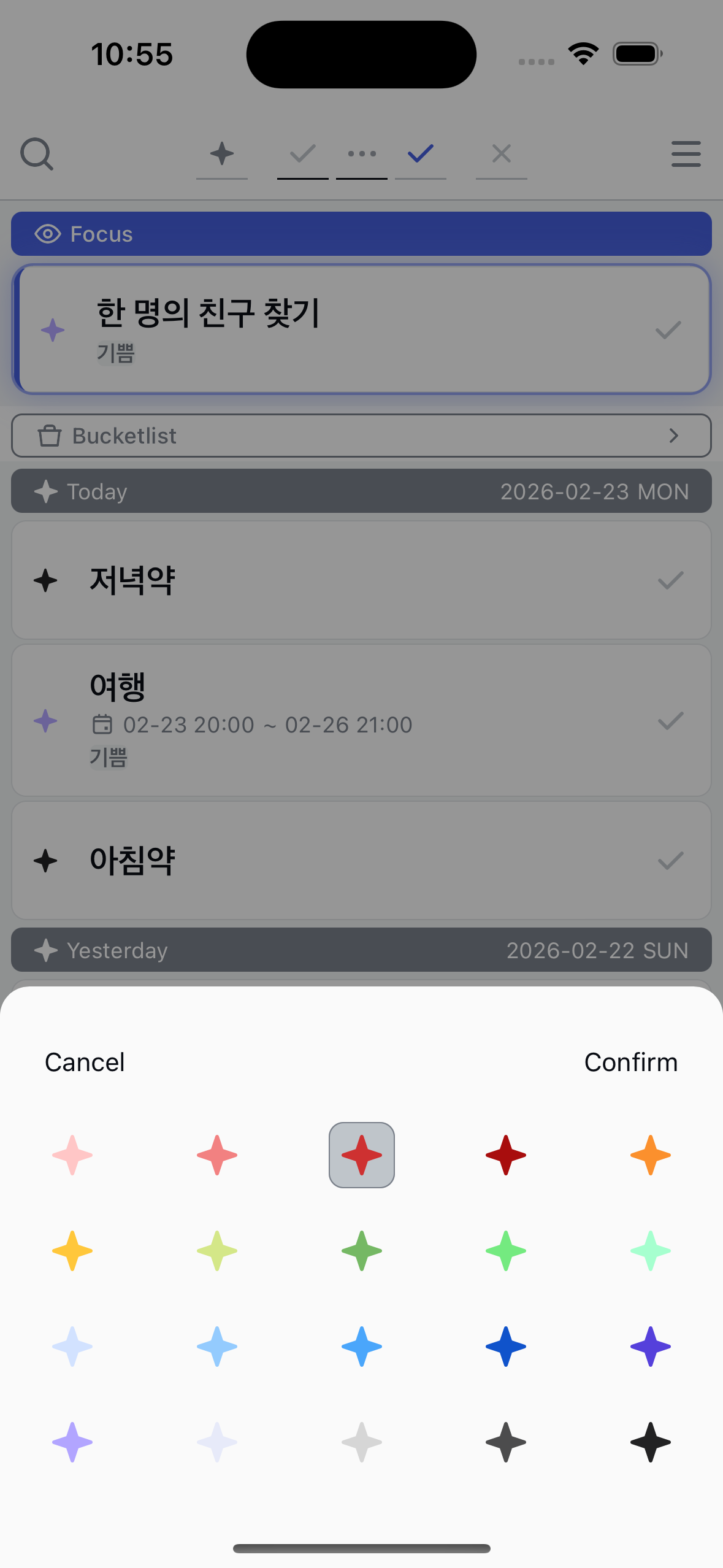
Filter by point color
Tap the star button to open the color filter. Select a point color to show only tasks with that color.
About filters
●
By default, Registered, Started, and Completed tasks are shown. Cancelled tasks are hidden.
●
Turning off the Completed filter is a great way to declutter your list after finishing tasks.
●
You can combine multiple filters — for example, show only Started tasks to focus on what's in progress.
●
Tap the star button to filter tasks by point color.
●
For more advanced filtering (keyword, date range, project), tap the search button on the left side of the top bar.